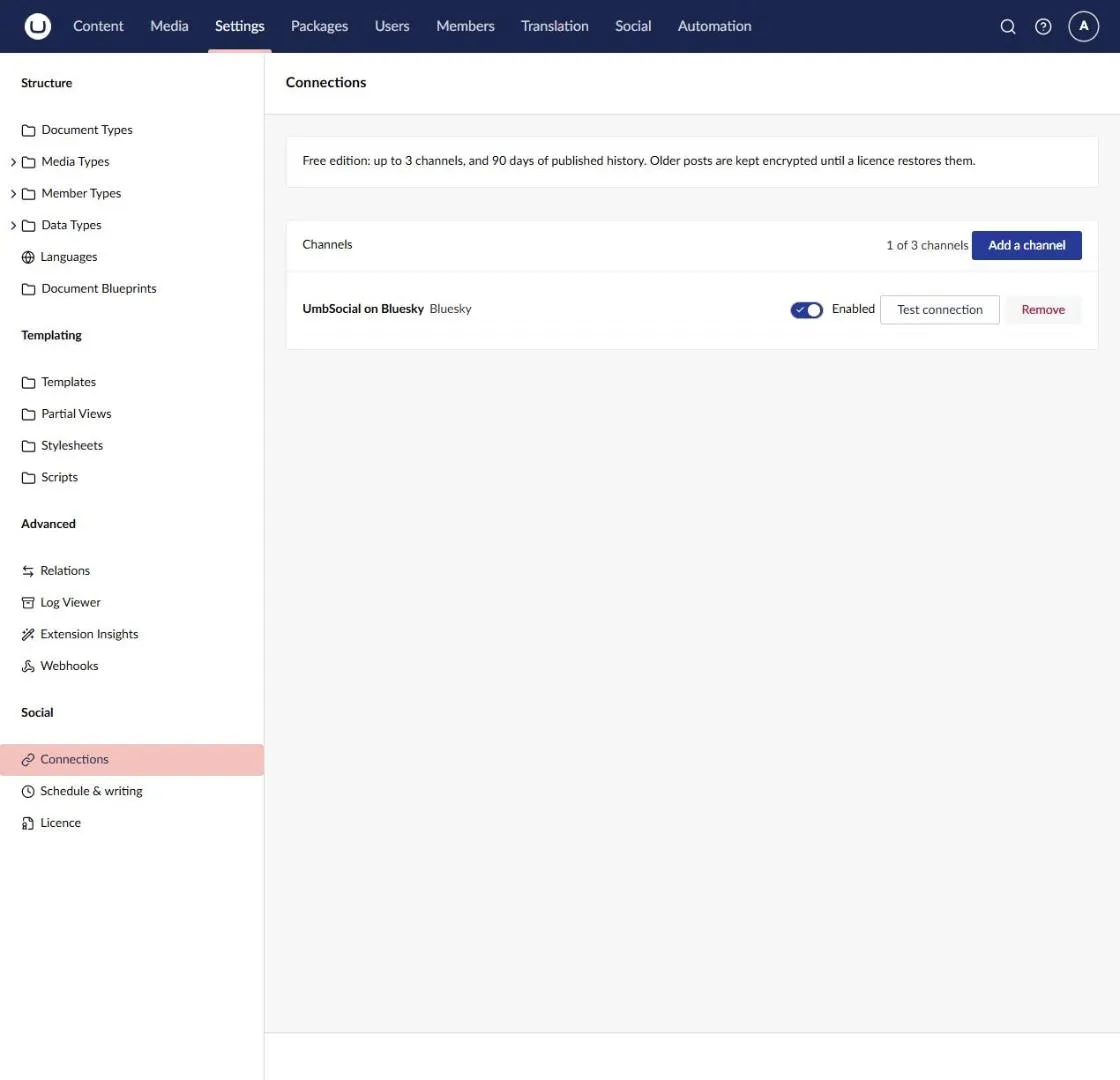
The Social Section
UmbSocial adds a Social section to the backoffice for writing and following posts, and a Social group to Umbraco’s Settings section for its settings. Which users see them, and what they can do there, depends on their user groups (see Permissions). Each page needs its own permission, and actions a user can’t take aren’t shown. The server checks the same permissions on every request, so a page opened by its address shows nothing without them.
Times are shown in Social’s time zone (Settings › Social › Schedule & writing), not the browser’s.
Opening the Social section takes you to the Queue.
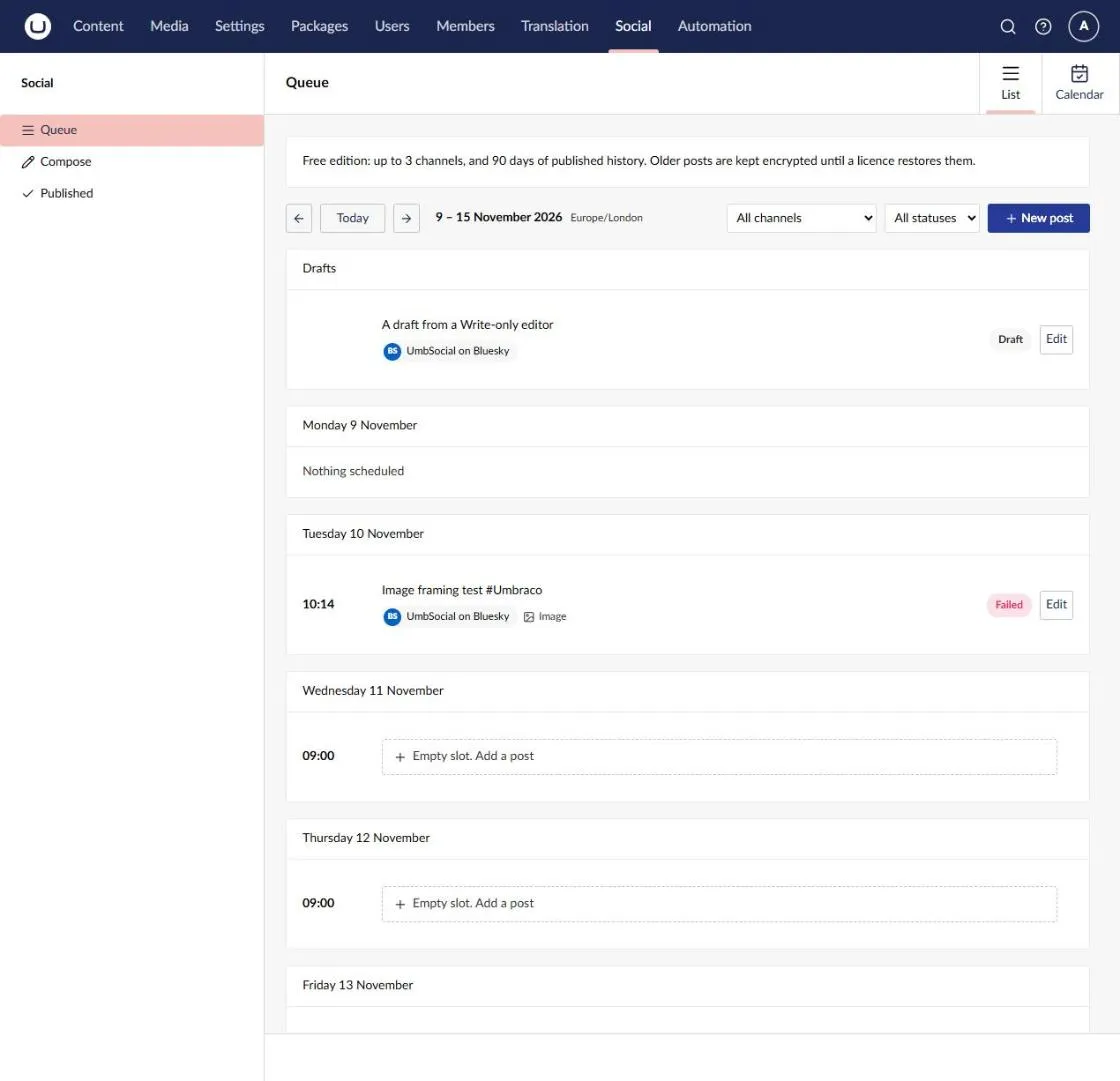
A week at a time, Monday to Sunday. Drafts come first, then each day’s scheduled posts and the free posting slots still to come. A free slot offers Empty slot. Add a post, which opens Compose at that time. Free slots are shown only to users who can schedule, and not when you filter by channel or status.
Filter by channel and status. The week and the filters are kept in the address, so a view can be shared or reloaded. Needs View.
Calendar
Section titled “Calendar”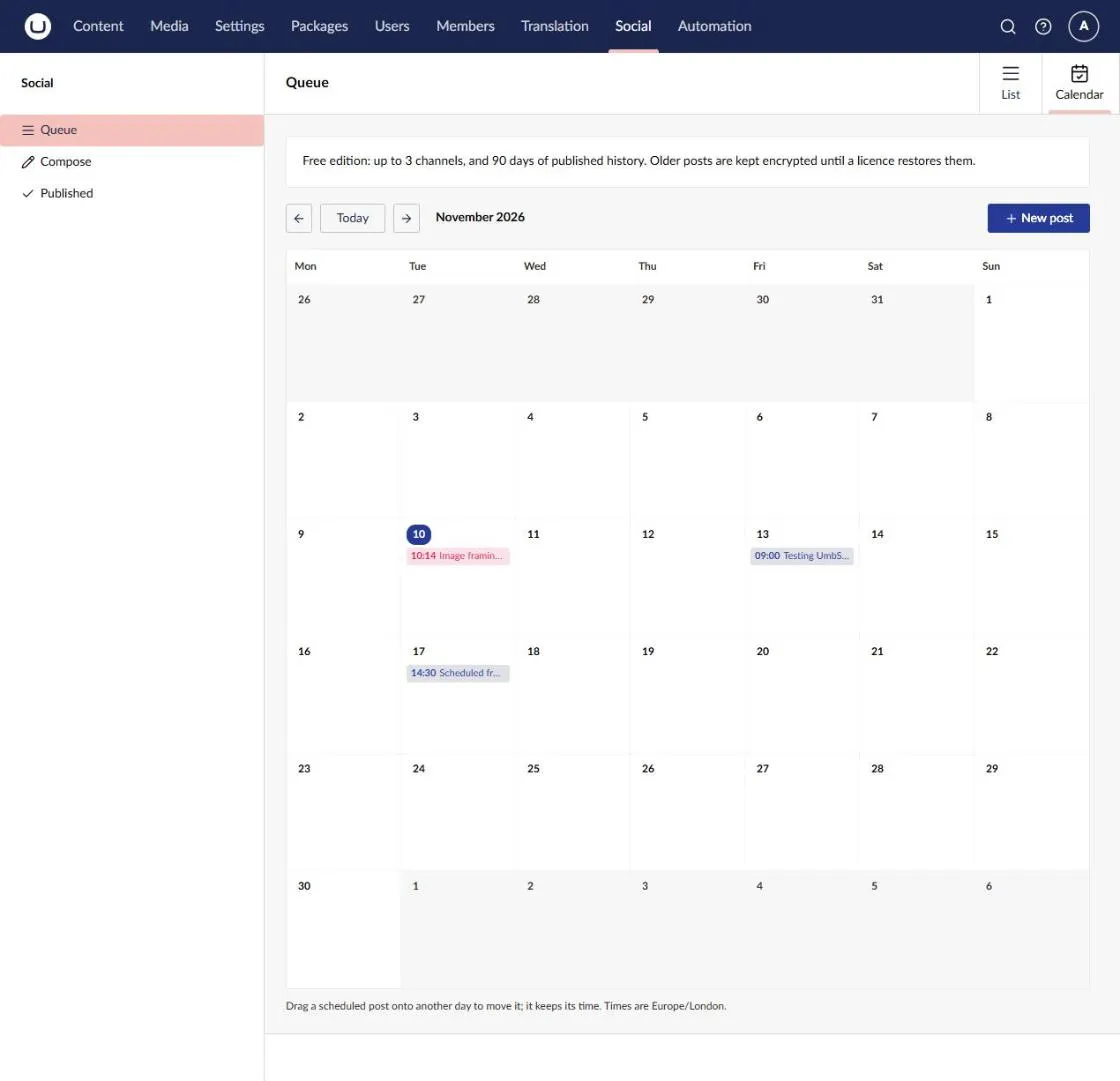
The queue’s second view (top right): a month grid of scheduled posts. Drag a waiting post (Scheduled or Paused) to another day to move it. It keeps its time of day. A time that doesn’t exist that day (the hour the clocks go forward) is refused, and an ambiguous autumn time reads as standard time, as the server does. Needs View, and Schedule to move posts.
Compose
Section titled “Compose”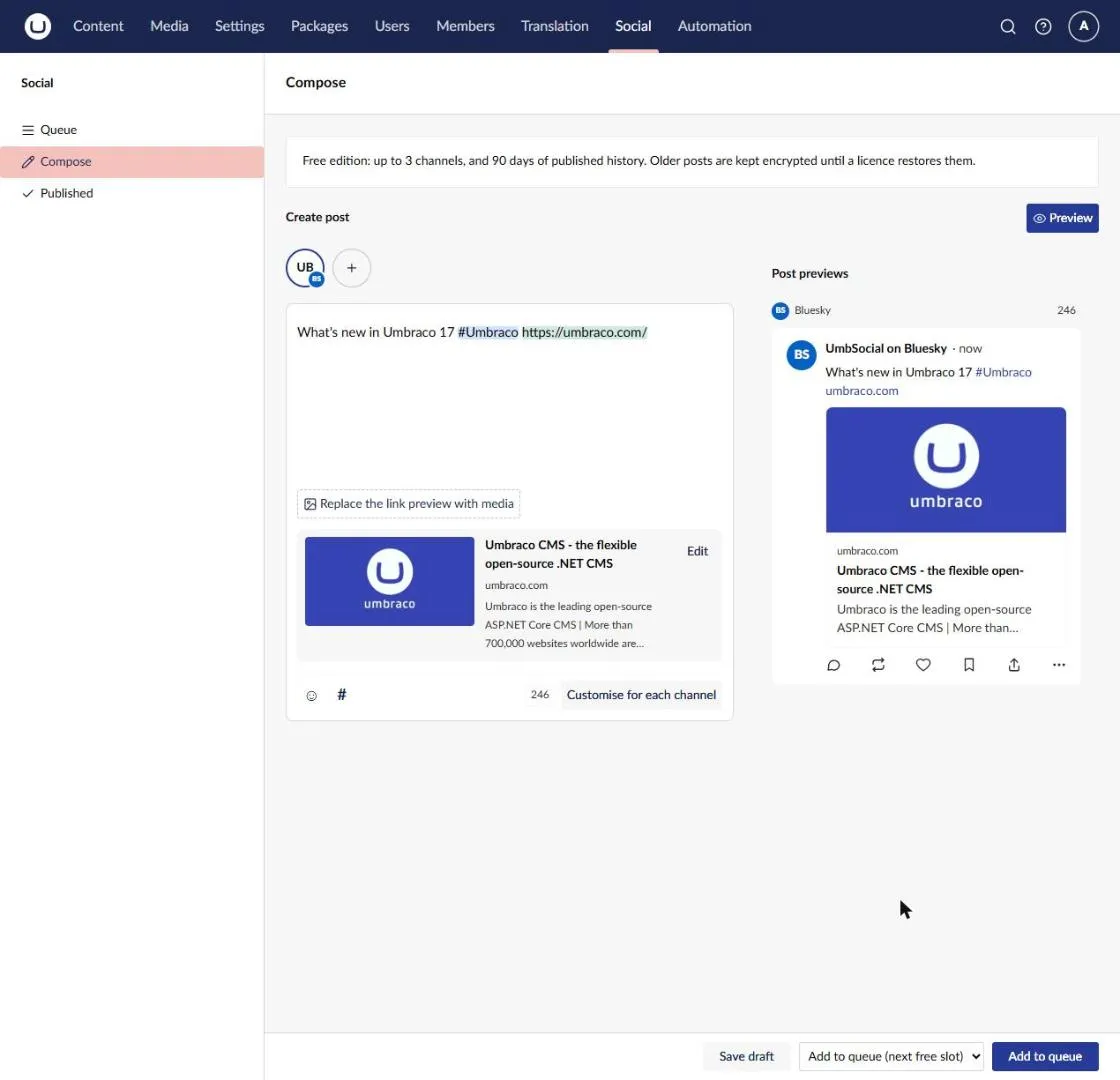
- Channels, along the top: choose where the post goes. A channel paused by the free edition’s allowance can’t be chosen. With Manage settings, + opens the channel settings.
- The text. Hashtags, mentions and links are tinted as you type. The emoji and # buttons insert at the cursor. The first link in the text becomes the post’s link (see Links and link cards).
- The link card or an image. When a chosen network shows link cards, the card is read from the page the link points to, and you can Edit its title and description. Add an image (or Replace the link preview with media) opens the Media library. Once an image is chosen, set its focal point and each network’s crop, and its alt text (see Images).
- Customise for each channel gives a channel its own text.
- Post previews, on the right (Preview shows or hides them): each chosen channel’s post as the network will show it, with its character count and anything the network would refuse. Both come from the server’s own check as you type. Warnings cover the link being added to the text, Instagram not showing links, networks that don’t receive alt text, and X’s higher charge for link posts.
- In the footer bar, Umbraco’s workspace actions: Delete (a saved post, after a confirmation), Save draft, and Add to queue (the next free slot). Its menu (▾) has Schedule for a time…, which asks for the date and time, and Publish now. When the post already has a time (you chose a free slot, or it is saved for a time), the main button is Schedule instead, which keeps that time, and the composer shows it (Goes out …). Its menu adds Add to queue. Without Schedule only Save draft is offered, and a notification says that someone with Schedule publishes drafts. Without Write, the page isn’t shown.
Required fields work as everywhere else in the backoffice: a post without text, or a Specific time without a time, is marked on the field and isn’t sent. A post with a result that may already be live, or that is being published right now, opens read-only with the reason.
See Writing and scheduling posts and Network limits.
Published
Section titled “Published”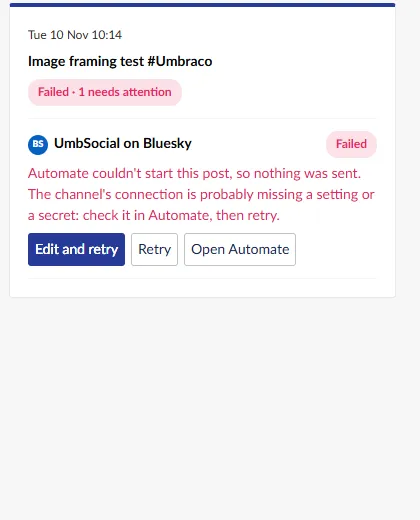
Posts that went out (or tried to), newest first, with each channel’s result. Open a post for each channel’s status, its live link (shown as a link only when it is an absolute https address), the reason for a failure, and what to do:
- a definite failure: Edit and retry, or Retry (needs Resolve);
- an unknown outcome: Open post when there’s a link, Mark as published (optionally with the live link), or Retry anyway after a warning that it may post twice (needs Resolve);
- Open Automate to look at the publishing run.
Needs View. See Publishing lifecycle.
Settings › Social
Section titled “Settings › Social”In Umbraco’s Settings section, under Social. Needs Manage settings.
- Connections: each channel with its status (paused, no publishing automation, connection test result), enable or disable it, Test connection, Create automation when it’s missing, and Remove (its published history is kept). Add a channel opens a form for the network, its Automate connection, a name and the network’s options. The free edition’s allowance is shown. See Connecting networks.
- Schedule & writing: whether publishing is on in this environment, the time zone and the posting slots, saved together with Save in the footer bar. See Posting schedule and time zone.
- Licence: the licence’s status, licensed domains and expiry, Check now, and what each edition includes.